Purpose
The Quote Table feature generates a streaming or snapshot quote table. Users have the power to customize fields and settings via standard Excel functions. This can be edited by selecting the function and clicking on the Quote Table icon in the ribbon.
Populating the Quote Table
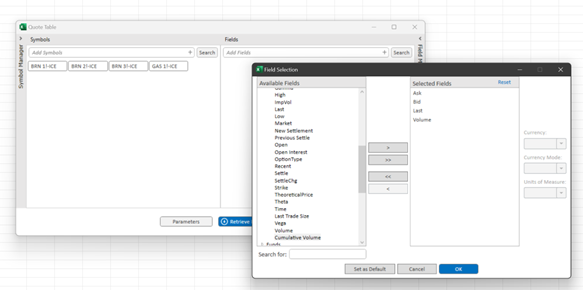
Open the user interface by clicking the Quote Table tab. Enter the Symbol(s) and Field(s) you would like data for in the proper sections. The “Search” tab to the right of each of these dialogue boxes allows for convenient searching for the desired symbols and data fields. The order that the fields are displayed can be adjusted simply by dragging the field name to the preferred position in the list.
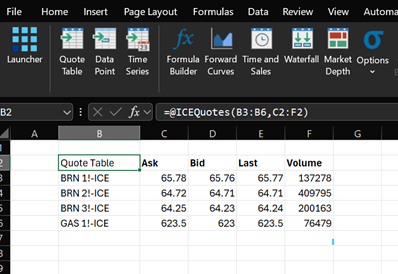
Upon clicking “Retrieve Data” the symbols will appear as rows and the fields as column in the Excel spreadsheet.
| Symbols | Symbols selected to be added to the Quote Table. |
| Add Symbols | Enter symbols to be added and click , you can click the to access symbol search dialog |
| Fields | Fields selected to be added to the Quote Table. Multiple fields are separated by comma. |
| Add Fields | Select Add Fields to add access a list of field available for the Quote Table |
| Parameters | Select Parameters to access user customized options for your Quote Table |
| Retrieve Data | Select Retrieve Data to execute and build your Quote Table within your Excel sheet |
| Symbol Manager | Select Symbol Manager (inside the to expand your library of saved and recently accessed symbols) |
| Field Manager | Select Field Manager to expand your library of saved field groups |